First, check that your charger is plugged in and has power. It should have at least one LED light illuminated.
Next, log into your battery charger in Victron Connect and make sure that your app and the device firmware is up to date. If you see a red or orange dot on the settings icon (it looks like a little gear wheel), click on it and update the device firmware.
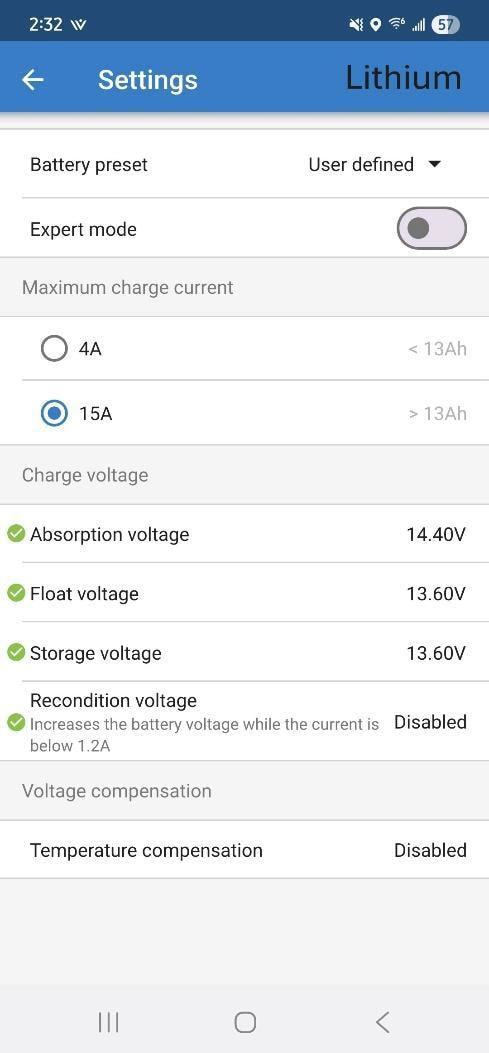
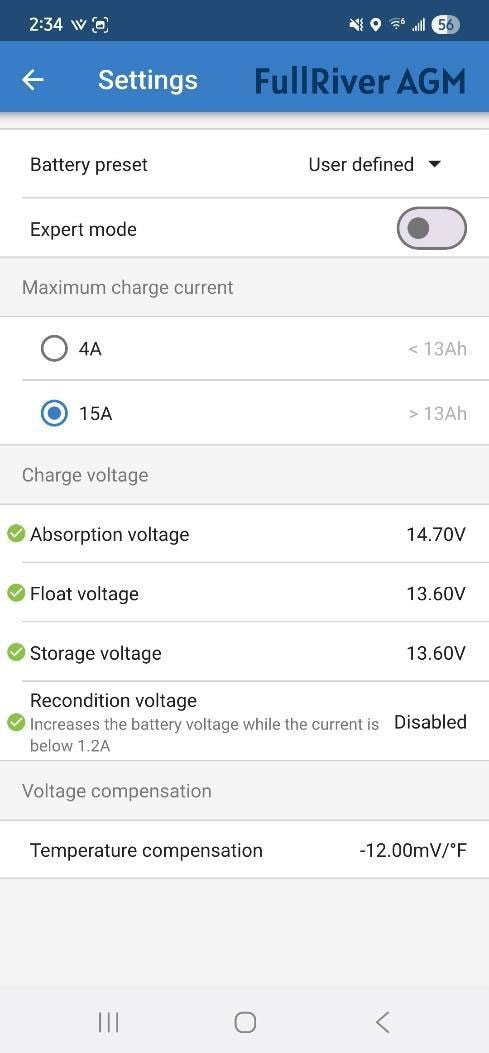
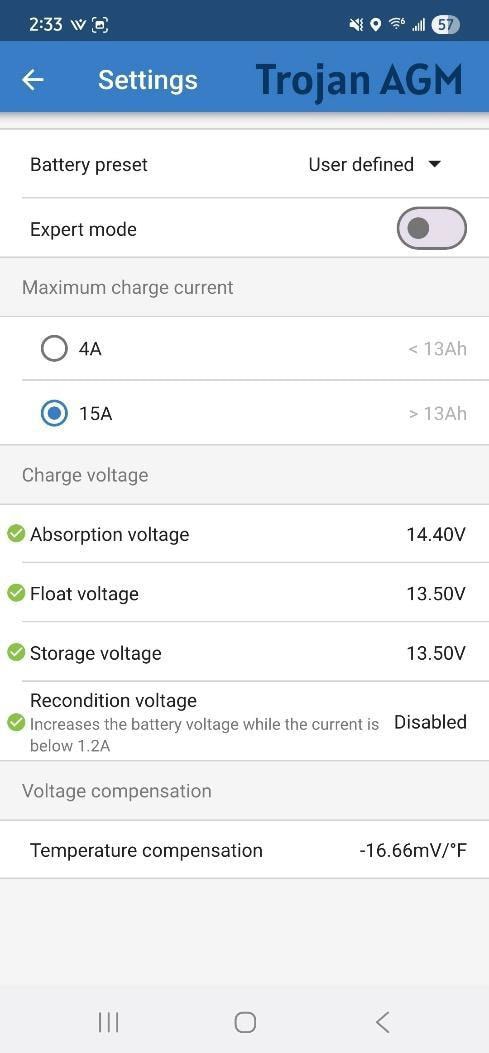
Incorrect settings can also prevent your charger from functioning properly. Log into your battery charger in Victron Connect and hit the gear wheel to get to the settings page and verify that ‘Advanced Settings’ is toggled on (blue color not gray). Click on Advanced Battery Settings and compare or adjust your settings to match the image of the correct battery type.
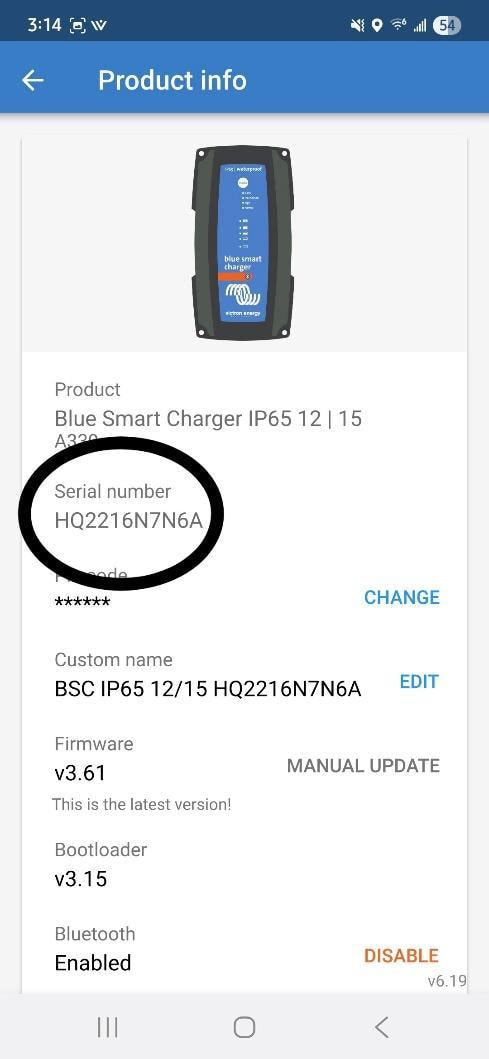
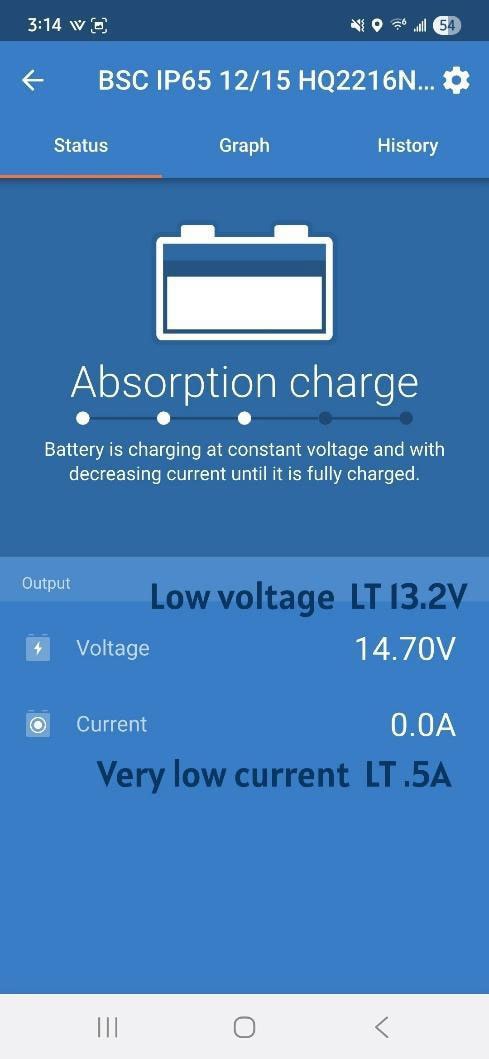
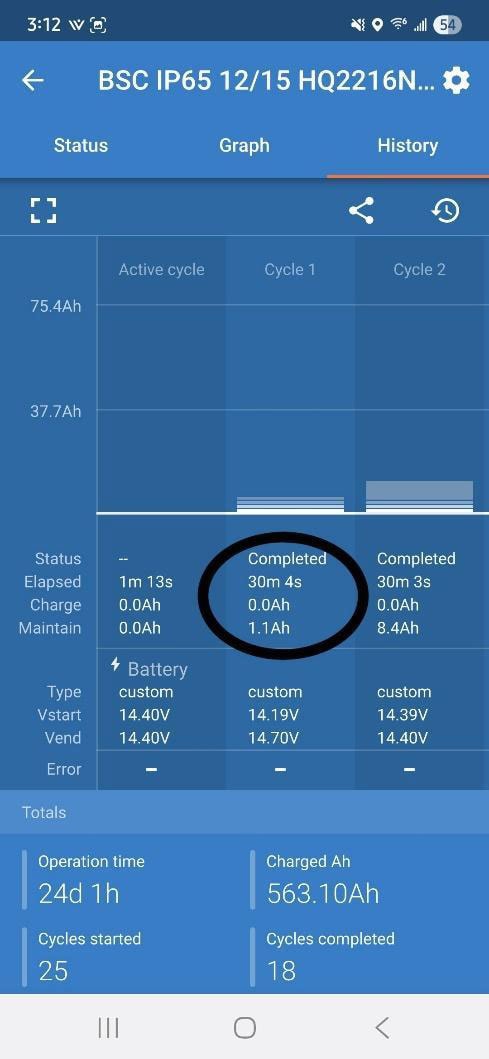
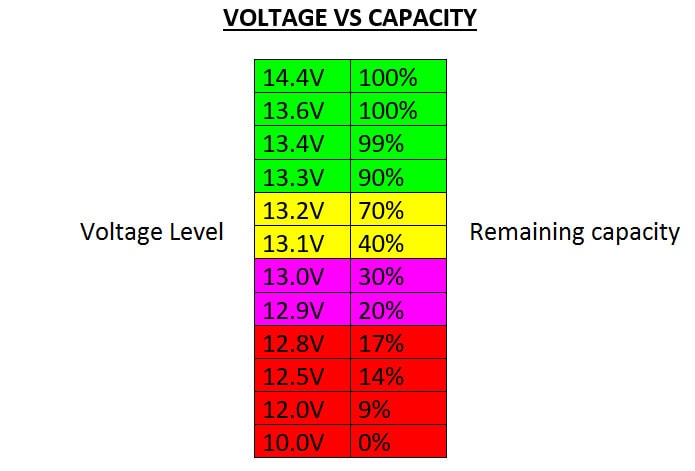
If you continue to have difficulty charging after completing the above troubleshooting steps, it could be a larger issue. We’ve heard from Victron that some of the chargers have a flaw in the circuit board that keeps the charger from working properly over time, often a software update can make the flaw more likely to surface. The symptom is that when the battery is below a full charge (see below for a voltage chart), the charger will start to charge in BULK mode like it is supposed to but quickly switch to ABSORPTION mode with almost no current. If this is what is happening to your charger it will most likely need to be replaced under warranty. Please provide screenshots matching those below showing the charger’s serial number, The Status page showing a low battery voltage (less than 13.2v) coupled with low or no current, and the History page showing recent short charge cycles where little to no power/charge was added to the battery (Vstart and Vend should also show less than 13.6v). Also let us know if you want us to swap it out and when you could come visit us or if we can ship it to you and include a shipping address for our distributor to mail a new charger. Contact us using the Trailer Service and Maintenance Request link at the bottom of the VB webpage.